
Email Capture
Grow your subscriber list by showing an email signup on your public storefront, so you can reach customers with restock alerts, specials, and events.
Pro plan feature — Upgrade to Pro to access this feature.
Direct link: /site/admin/web-settings/email-capture
Grow your subscriber list by showing an email signup on your public storefront, so you can reach customers with restock alerts, specials, and events.
Overview
Your best customers want to know when the next batch drops. Email Capture adds a friendly signup to your shop in two places: a signup section on every page, and a slim signup bar along the bottom of the screen whenever you don't have an announcement running. Visitors can join your list in one tap, and you control the wording from one page.
Steps
1. Go to Email Capture
From your admin dashboard, click Website in the left sidebar, then expand Website Settings and click Email Capture.
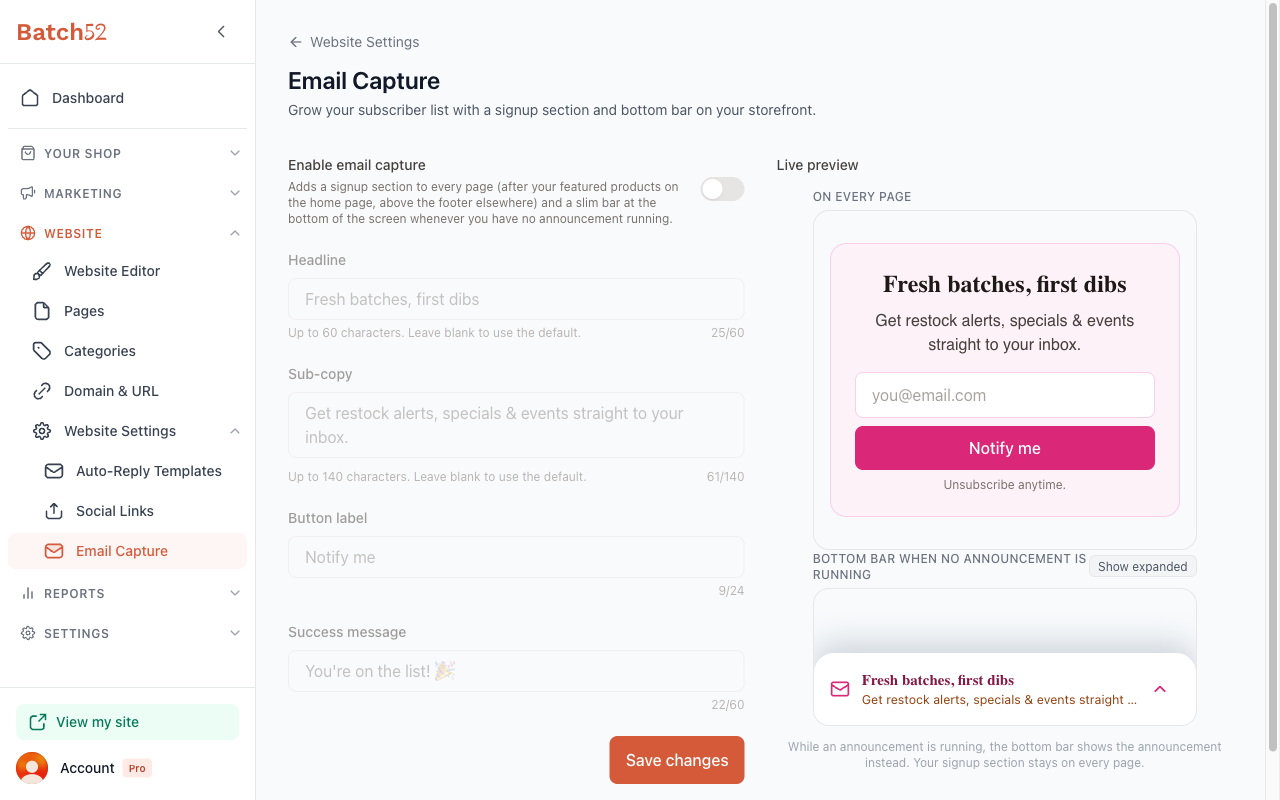
When email capture is turned off, the settings below are dimmed and can't be edited yet — the page is ready and waiting for you to switch it on.
2. Turn on email capture
Flip the Enable email capture toggle at the top of the page. This is what actually shows the signup on your public storefront. Once it's on, all the settings below become editable.
3. Customize the wording
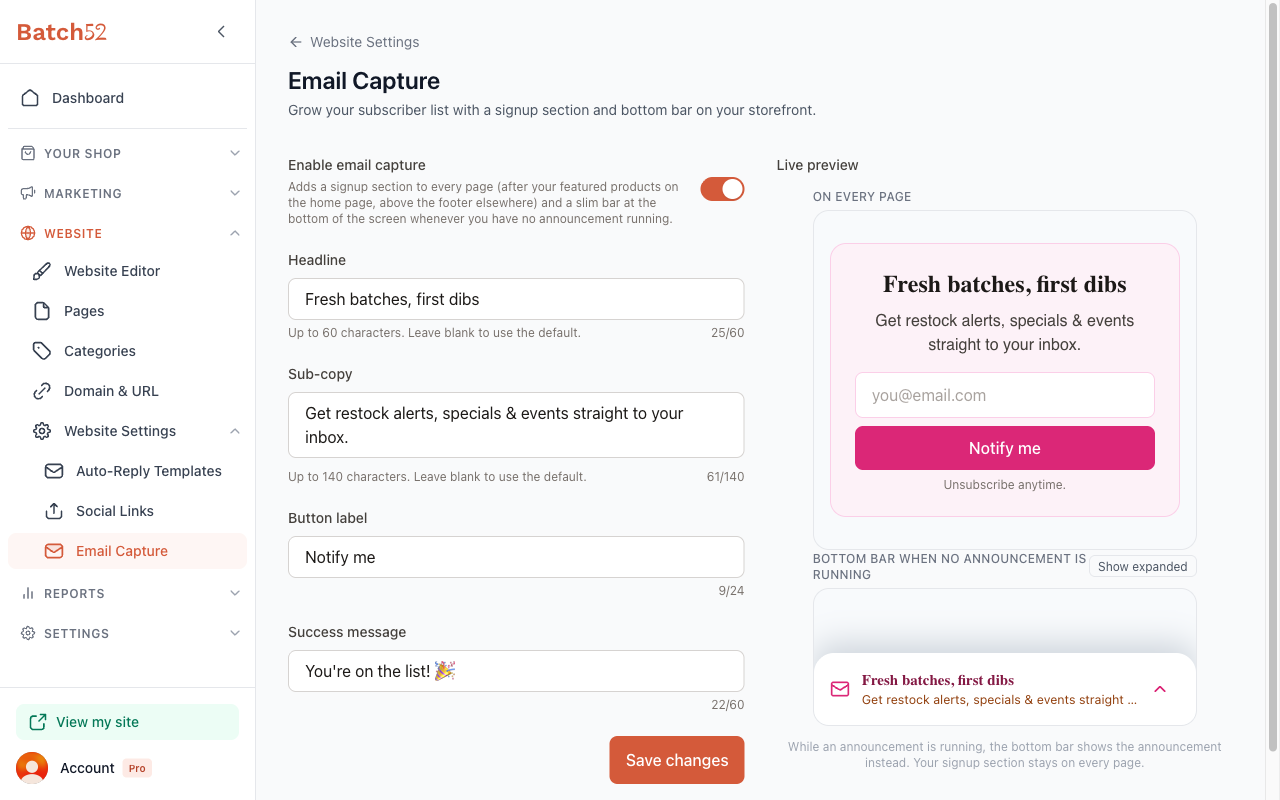
You can tailor every piece of text in the signup. Each field has a character limit and a sensible default — leave a field blank to use its default.
- Headline — the bold, attention-grabbing line (up to 60 characters). Default: Fresh batches, first dibs
- Sub-copy — the supporting sentence beneath the headline (up to 140 characters). Default: Get restock alerts, specials & events straight to your inbox.
- Button label — the text on the signup button (up to 24 characters). Default: Notify me
- Success message — what customers see after they sign up (up to 60 characters). Default: You're on the list! 🎉
A live character counter under each field (for example, 25/60) helps you stay within the limit as you type.
4. Check the Live preview
On the right side of the page, the Live preview shows both places your signup appears, updating as you type:
- On every page — the signup section customers see as they browse.
- Bottom bar when no announcement is running — the slim bar pinned to the bottom of the screen. Click Show expanded to see the bar with its email field and button slid up, the way customers see it after their first scroll.
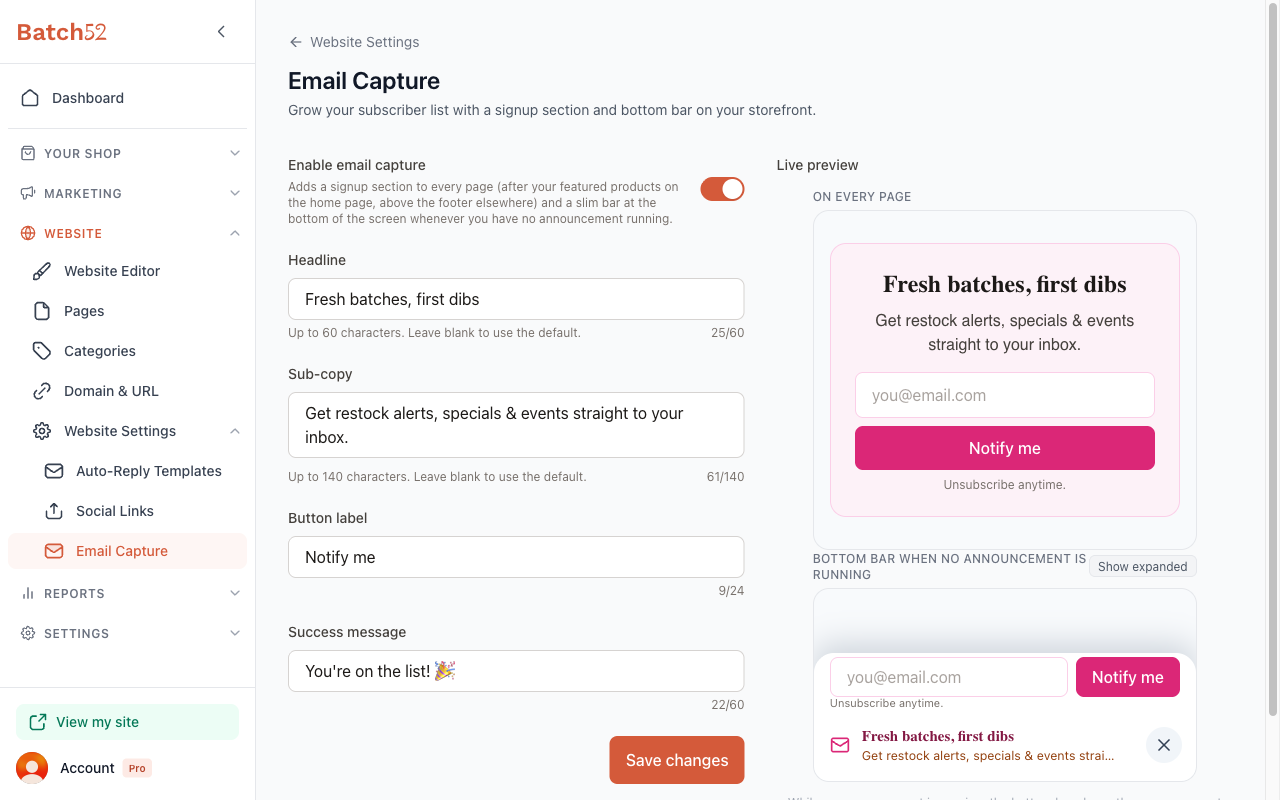
The preview is display-only — the form doesn't actually submit here, so feel free to experiment.
5. Save your changes
When everything looks right, click Save changes. A green Email capture settings saved confirmation appears, and your signup goes live on your storefront right away.
6. See it on your storefront
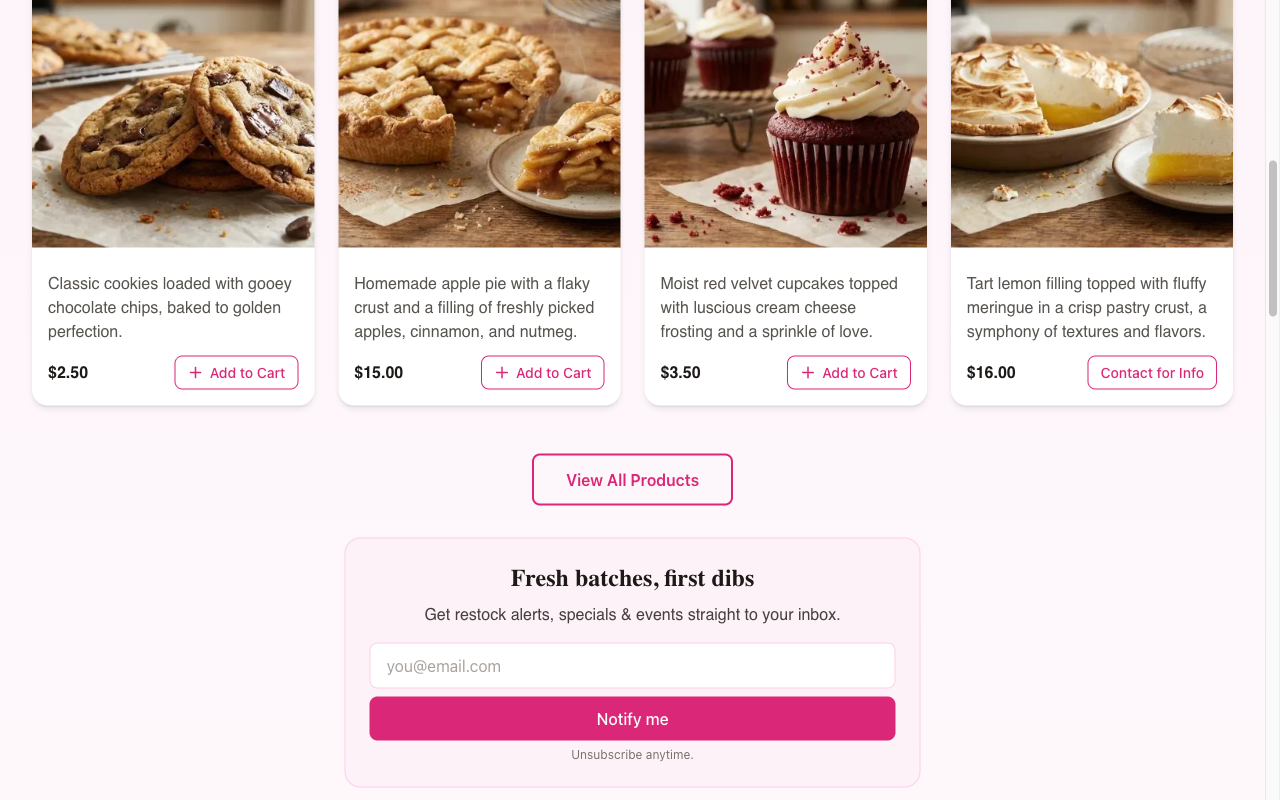
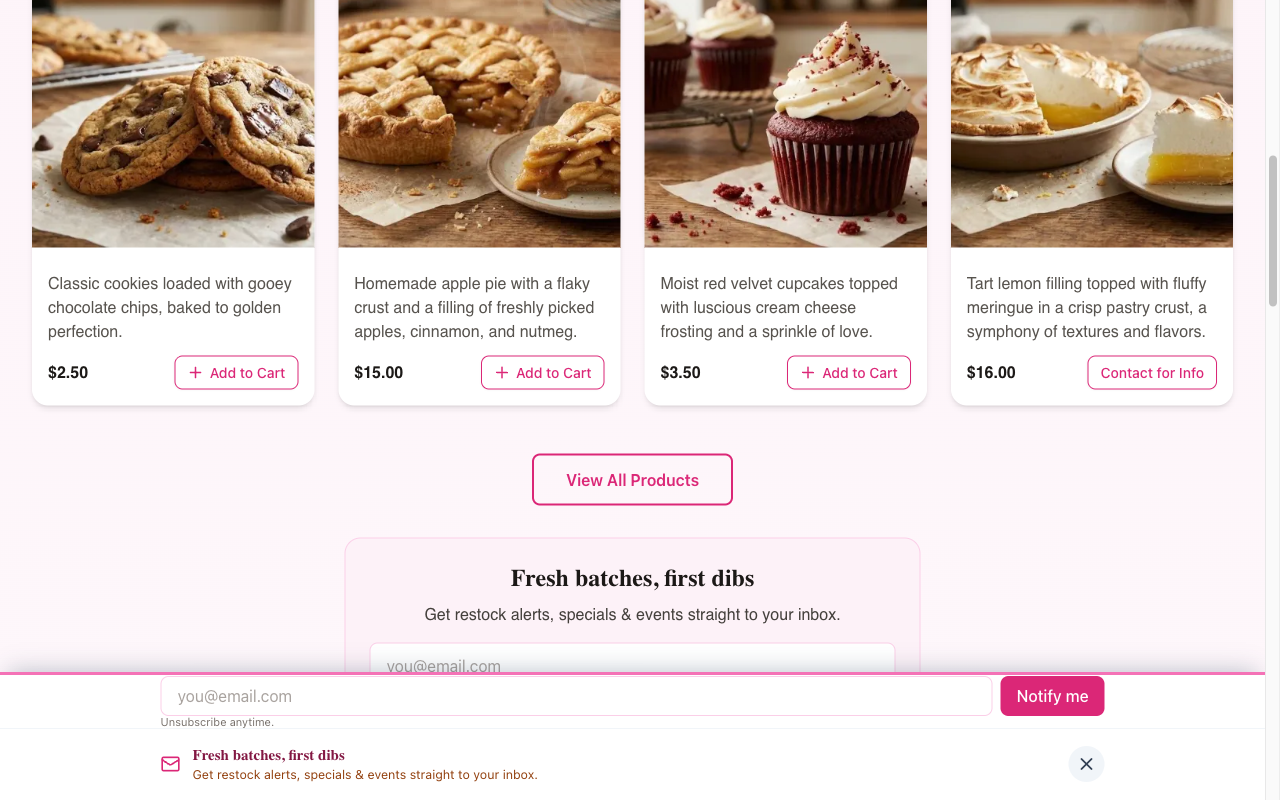
Open your shop to see both placements. The signup section sits on every page: on your home page it comes right after your featured products, and on other pages it sits just above the footer. It's always there, so customers can subscribe whenever they're ready.
The bottom bar is a slim row pinned to the bottom of the screen showing your headline and sub-copy. It only appears when you don't have an announcement running — while an announcement is live, the bottom of the screen shows the announcement instead, and your signup section stays on every page.
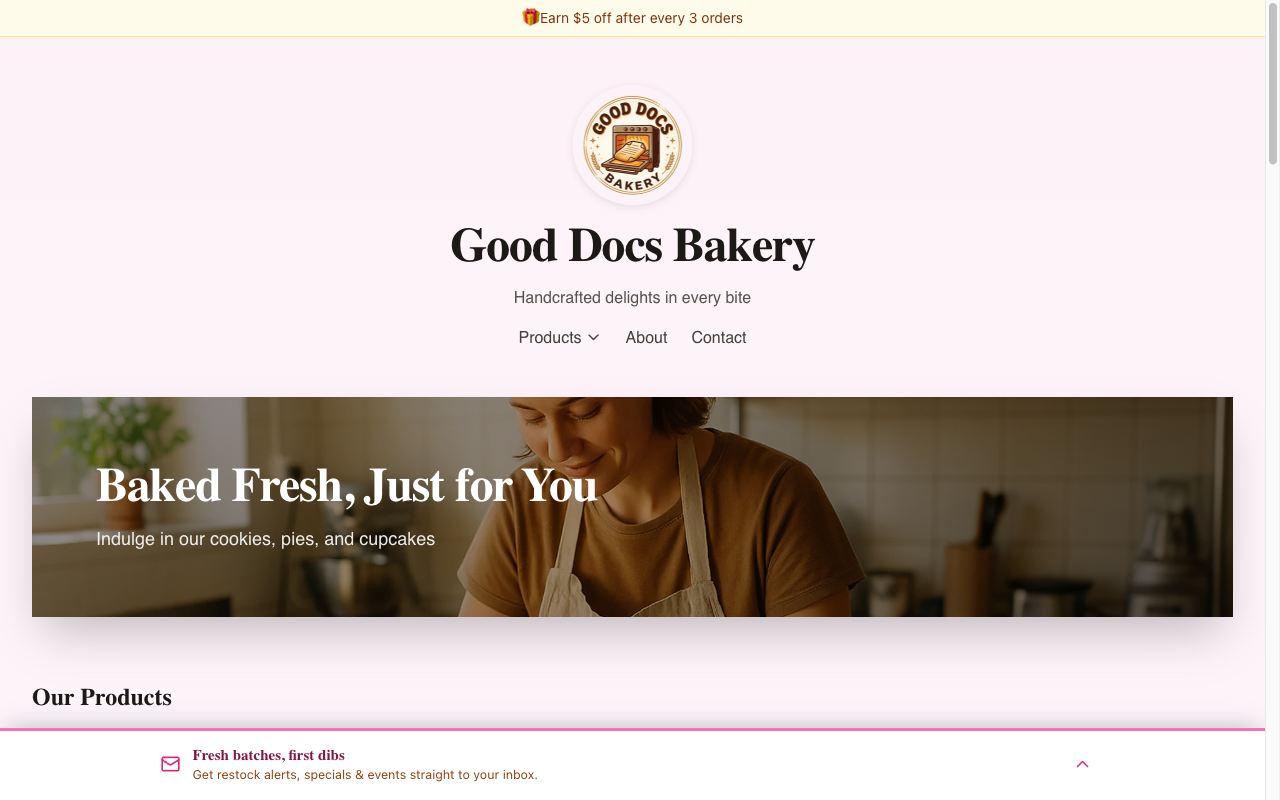
The first time a visitor scrolls, the bar's email field and button slide up on their own. After that it stays collapsed, and a tap on the bar opens it again. The X hides the bar for the rest of that visit, and subscribing hides it for good — once someone is on your list, they won't be asked again.
Tips
- Not sure what to write? Leave any field blank and Batch52 fills in a friendly default for you.
- Keep your headline short and punchy — the character counter turns this into a quick gut-check as you type, and the bottom bar shows your headline on a single line.
- Running an announcement? Your signup section still appears on every page, so customers can subscribe even while the bottom of the screen is busy with your announcement. See Create Announcements.
- Customers who sign up can unsubscribe anytime, so there's no pressure — the prompt even says so.